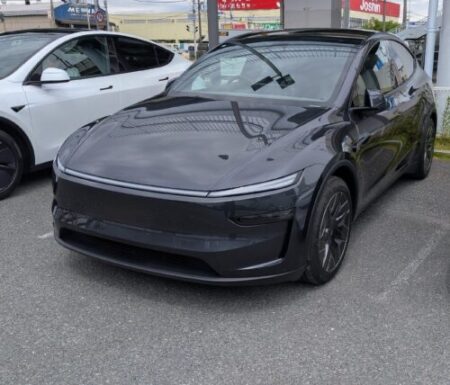
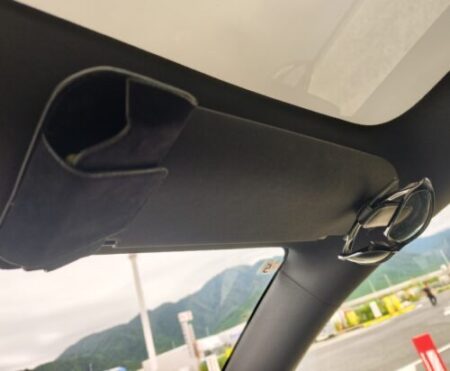
I fitted a 10.88-inch AliExpress unit behind the steering wheel as my Model YL dashboard display.
When I installed it, all I’d confirmed was that it showed speed and battery level. So after a few drives, I took a proper look at what this Model YL dashboard display can actually do.
I covered the install steps, including the ABS errors that popped up partway through, in my previous post.
What the Model YL dashboard display shows while driving
Speed and the speed limit, right in front of you
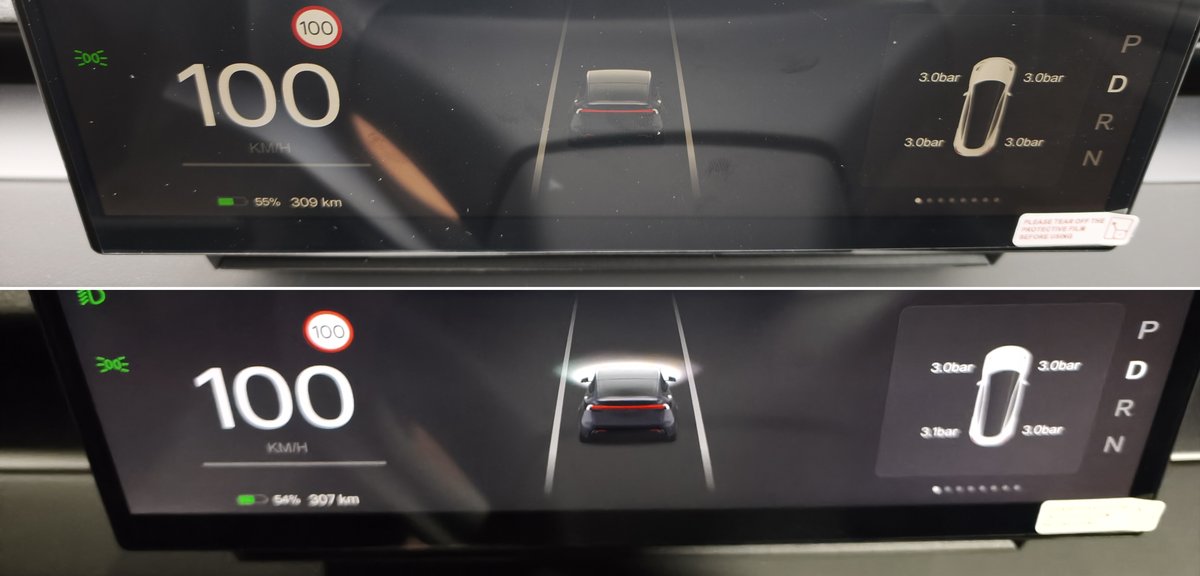
The best part is having the speed behind the steering wheel.
On the Model YL you normally read your speed off the centre screen. Having it right in front of you is genuinely nice.
The speed limit sign appears next to your speed too. I took the photo above on an expressway, showing a 100 km/h sign.
Battery level next to the range
The bottom left of the screen shows the battery percentage next to the range in km.
This turned out to be surprisingly handy. You see how much charge is left and how far you can go, all at once.
Tyre pressures appear as soon as you move
On the right there’s an image of the car with the pressure of each of the four tyres.
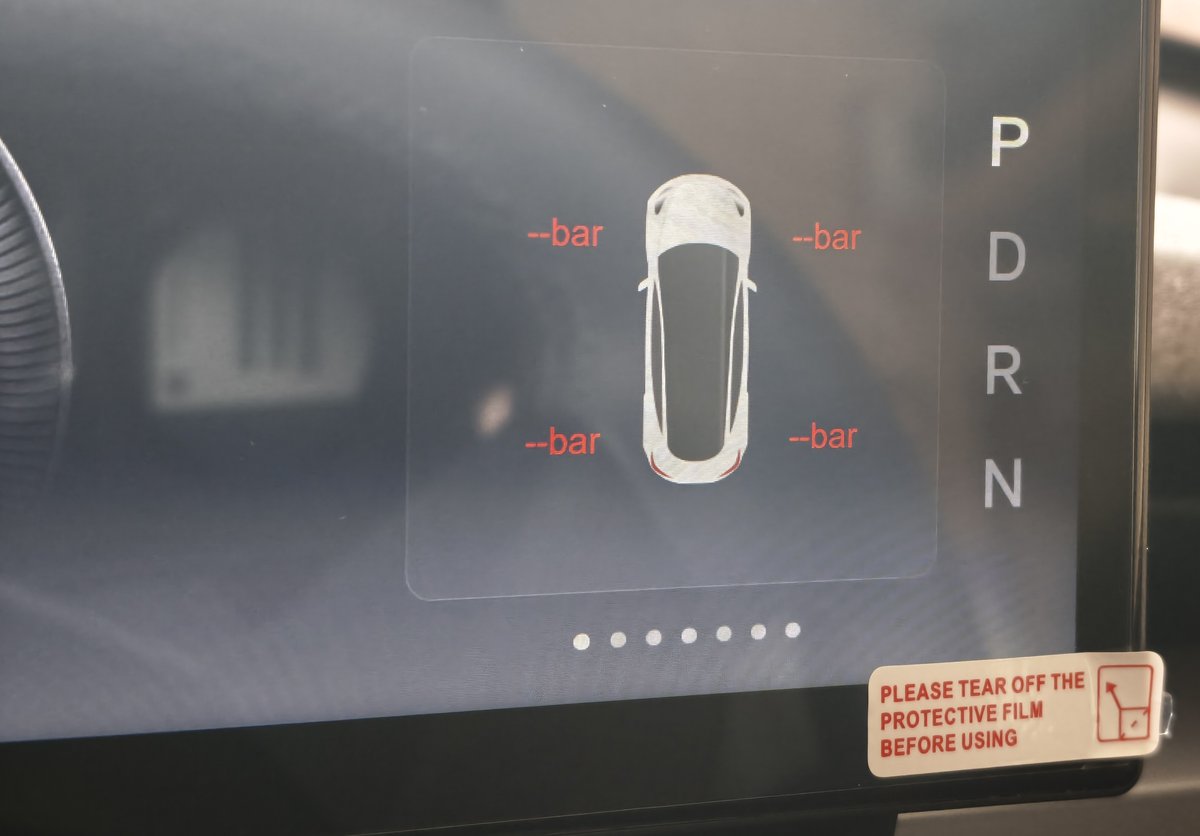
Right after start-up, the pressures read “–bar”. As soon as the car moves a little, the values fill in.
It shows this almost every time, so it may reset whenever it starts up.
Blind-spot alerts and indicators
The edge glows orange when a car is in your blind spot
When there’s a car in the blind spot diagonally behind you, the edge of the screen lights up orange.
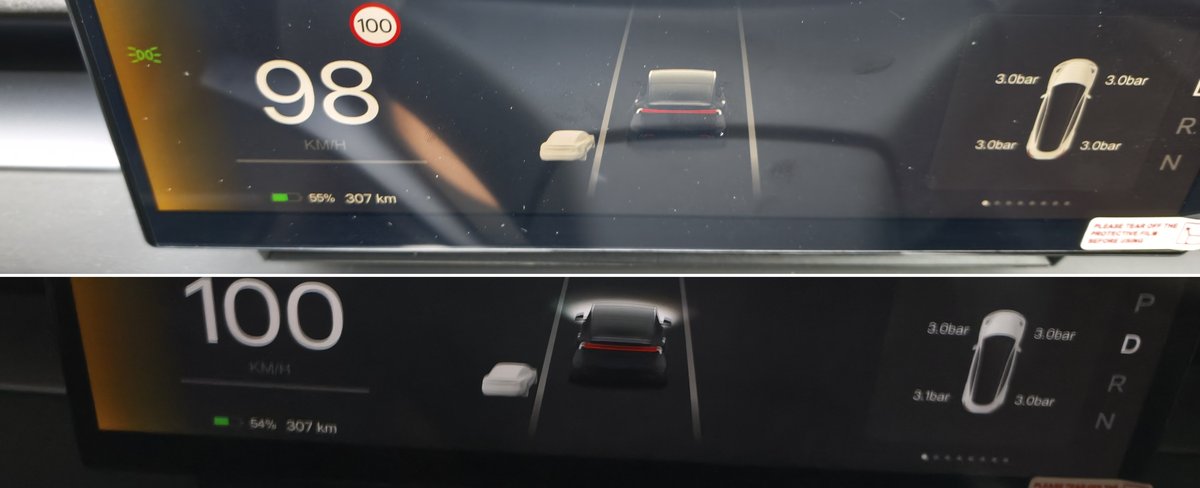
Both shots above were taken with a car in the left lane. The left edge turns orange, and a car also appears beside the image of my car.
If you indicate while it’s still there, the orange area turns red as a warning.
When you change lanes, the Model YL zooms out the view on the centre screen to show what’s around you. This display instead warns you with colour behind the wheel. I wrote about that zoom-out behaviour in this post.
It shows which way you’re indicating
When you indicate, a green arrow appears on the screen.
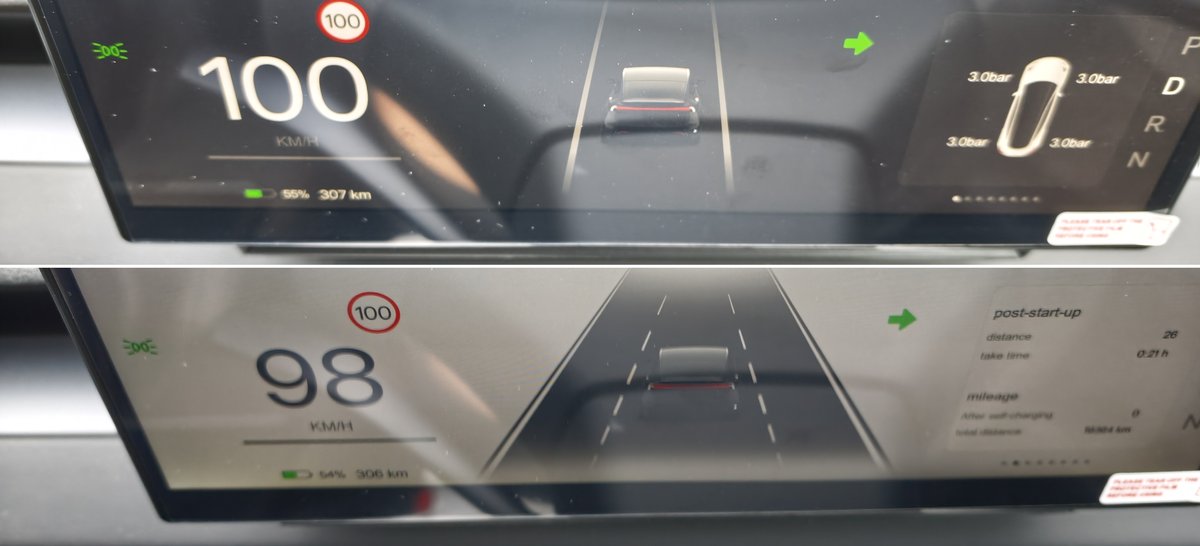
In the layout in the lower photo, the right side also shows things like the distance driven since start-up.
You can switch between several screen layouts
There are several layouts to choose from.
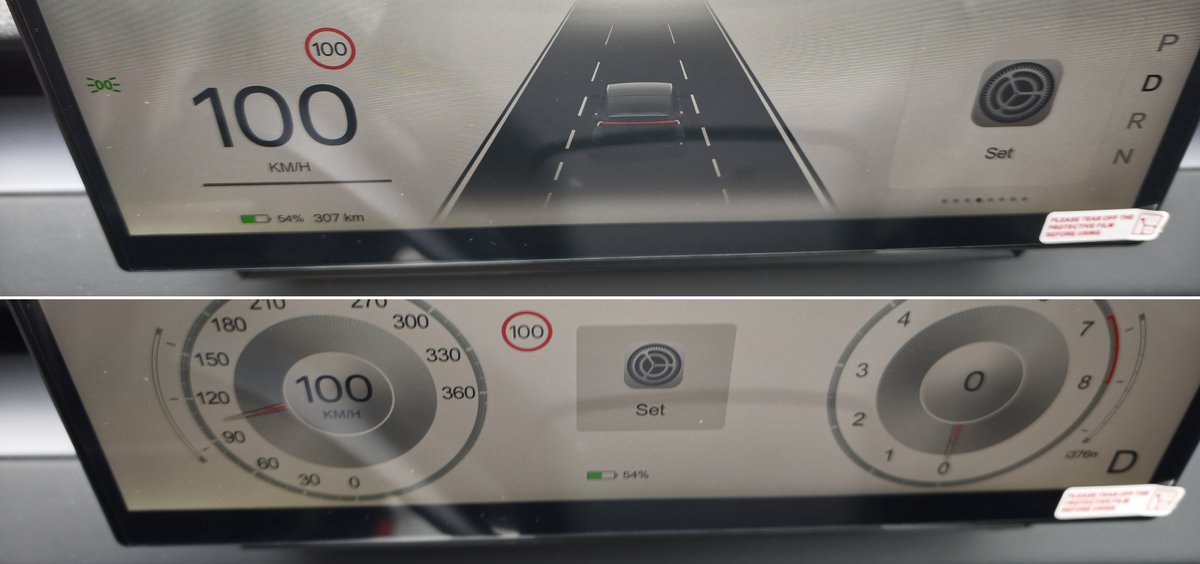
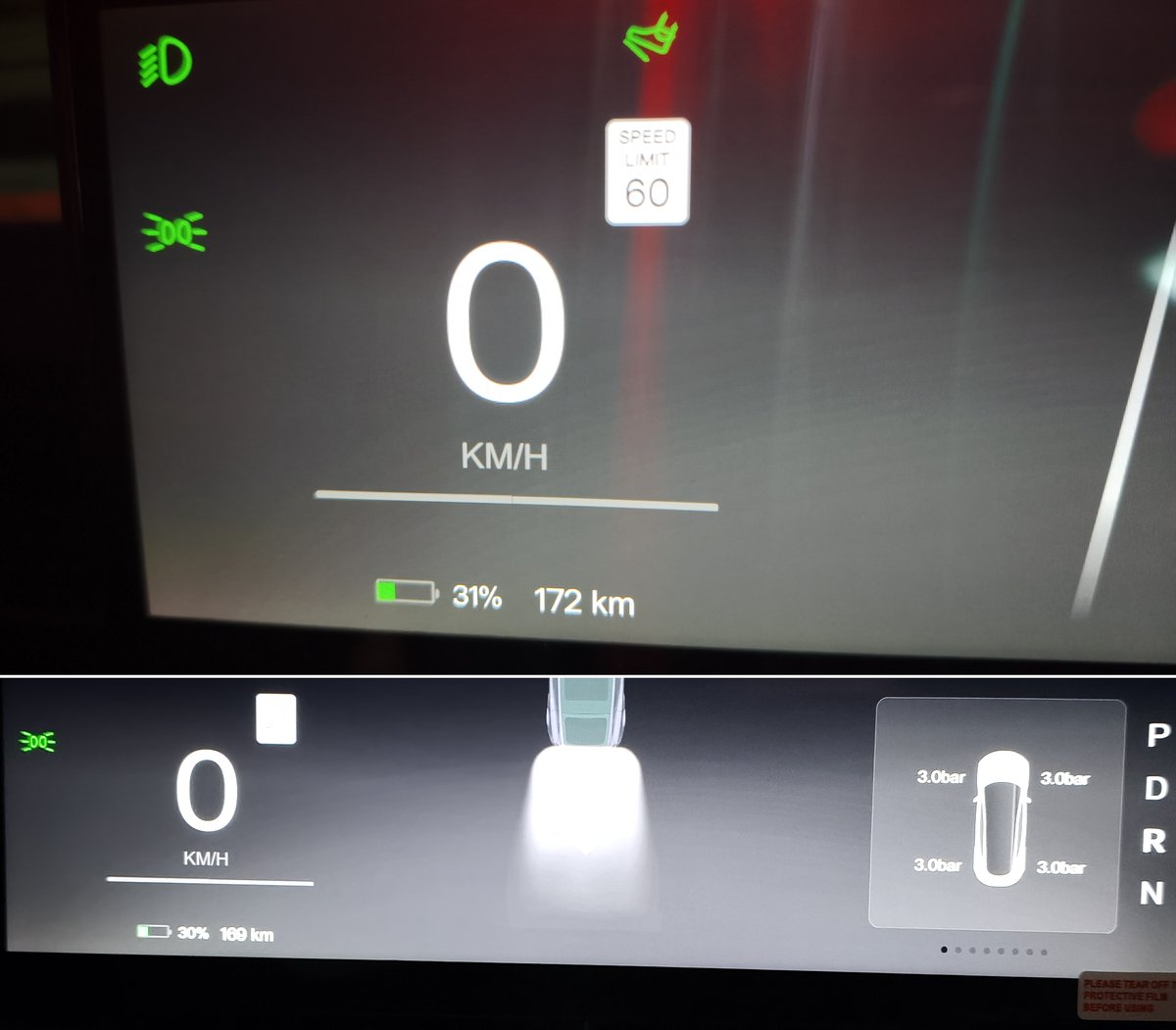
The top one gives a large view of the road ahead. The bottom one looks like analogue gauges.
When you stop, a large image of the car appears.
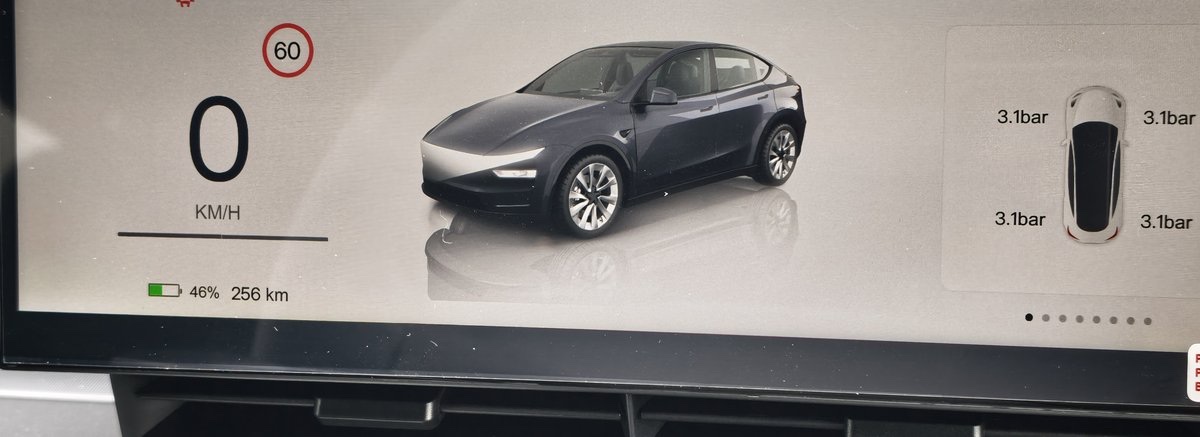
At night it also shows when the headlights are on.
Android Auto navigation plus music, with the gauges still visible
If you connect your phone through Android Auto, you can have a map or music on the left with the gauges on the right.
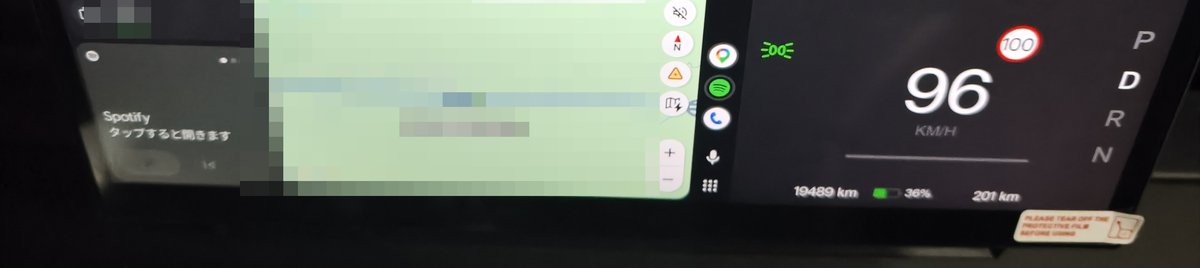
It looks like Google Maps navigation through Android Auto should work too.
You could even split it: the Model YL’s own navigation on the motorway, Google Maps through Android Auto on local roads.
Charging screen and quick settings
When you plug in a charging cable, an image of the car connected to a charger appears.
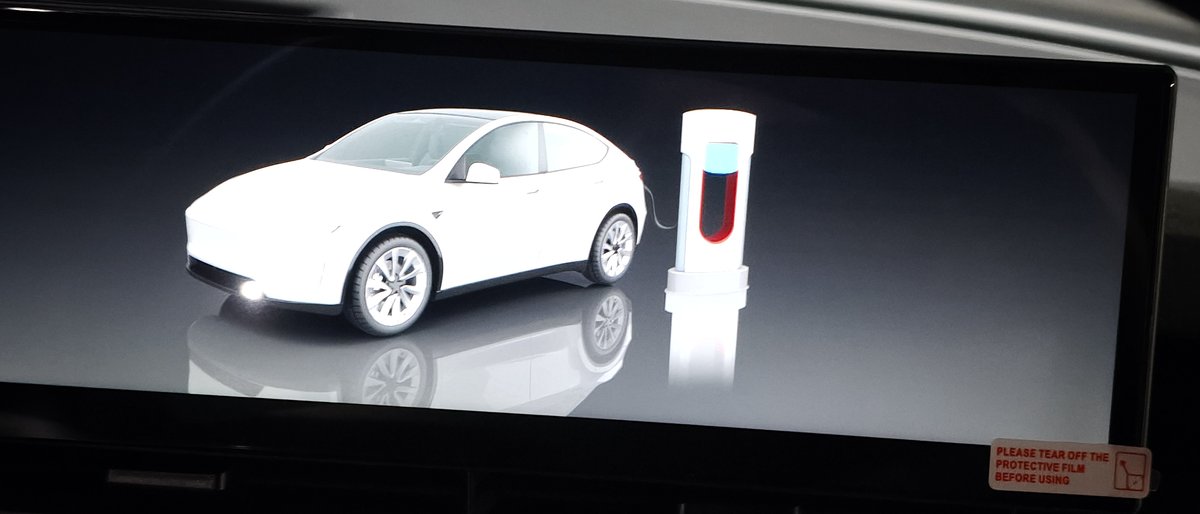
The charger in the image was a V3 Supercharger. I don’t know yet what it shows with other chargers.
Swipe down on the screen to bring up quick settings.
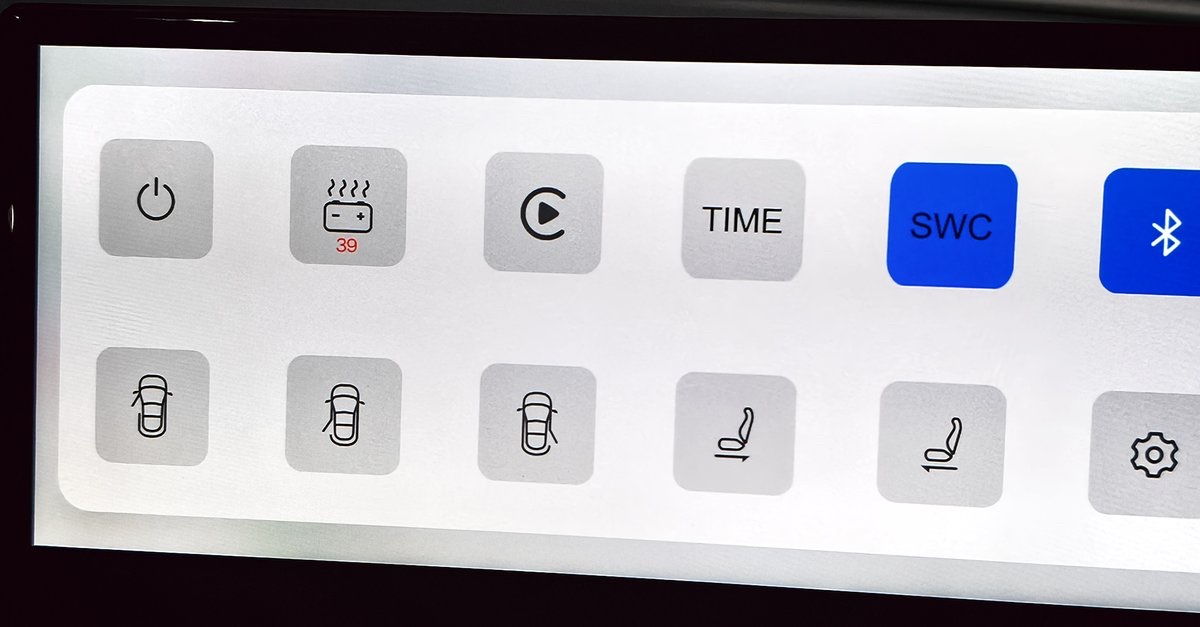
The second from the left is the battery temperature. It read 39 here, which was on the high side because I’d only just finished charging.
SWC seems to be for assigning the steering wheel buttons, but I haven’t worked that one out yet.
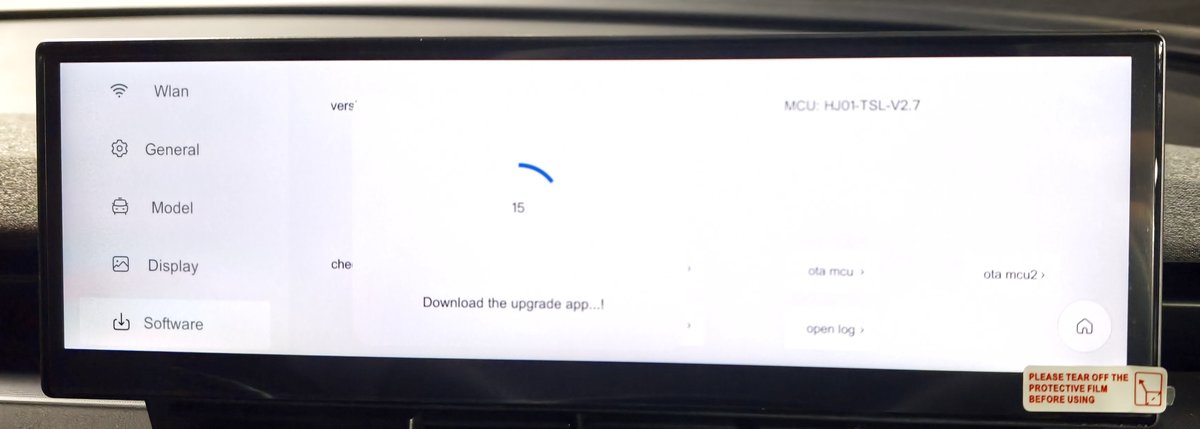
The settings screen has entries for Wi-Fi, display, software and more. You can update the software from here too.
Summary
Here’s what the AliExpress Model YL dashboard display actually showed.
- Speed and the speed limit behind the steering wheel
- Battery percentage next to the range
- Tyre pressures read –bar at start-up, then appear once you’ve moved a little
- The edge glows orange with a car in your blind spot, then red if you indicate
- Android Auto can show a map or music alongside the gauges
- Plugging in a charging cable brings up an image of the charger
The two I liked most were having my speed right in front of me, plus seeing the battery level next to the range.
If I figure out what SWC does, or how it looks with other chargers, I’ll write it up.
When buying, I went for the 10.88-inch model because I wanted the biggest screen I could get.
After using it, though, I don’t think screen size matters that much if speed and battery level are mostly what you want to see.
Connect over Miracast and the display mirrors your phone screen, so you can play YouTube videos while parked. I’ve covered how to connect it, plus my test with an AI box made for the ATTO 3.
The exact unit I bought can no longer be ordered from Japan, but AliExpress has plenty of similar dashboard displays. Here’s one of them.
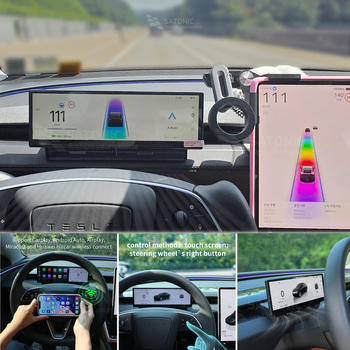
The five dashboard displays I compared before buying are in this post. For the car itself, Tesla’s Model Y page is the official reference.
Other AliExpress accessories I use
This article is also available in Japanese.